This article was written in 2018. Versions, tools and recommendations may have changed since then. Newer posts are collected under Docker.
If you have a Synology with an x86 CPU it is very easy to run Docker Containers on your Synology. If you have a ARM-based Synology systems, this does not work, because most of the Docker Images requires a x86 architecture
My Setup
- Synology DS718+ with 2GB RAM by default {target=_blank rel=noopener}
- Kingston 8 GB RAM Extension {target=_blank rel=noopener}
- WD RED 6 TB Primary HDD {target=_blank rel=noopener}
- WD RED 6 TB Secondary HDD {target=_blank rel=noopener}
- 128 GB SanDisk Ultra External USB {target=_blank rel=noopener}
Install Docker from the Package Center
Open your Package Center, search for Docker in the top-bar and install the Docker package.
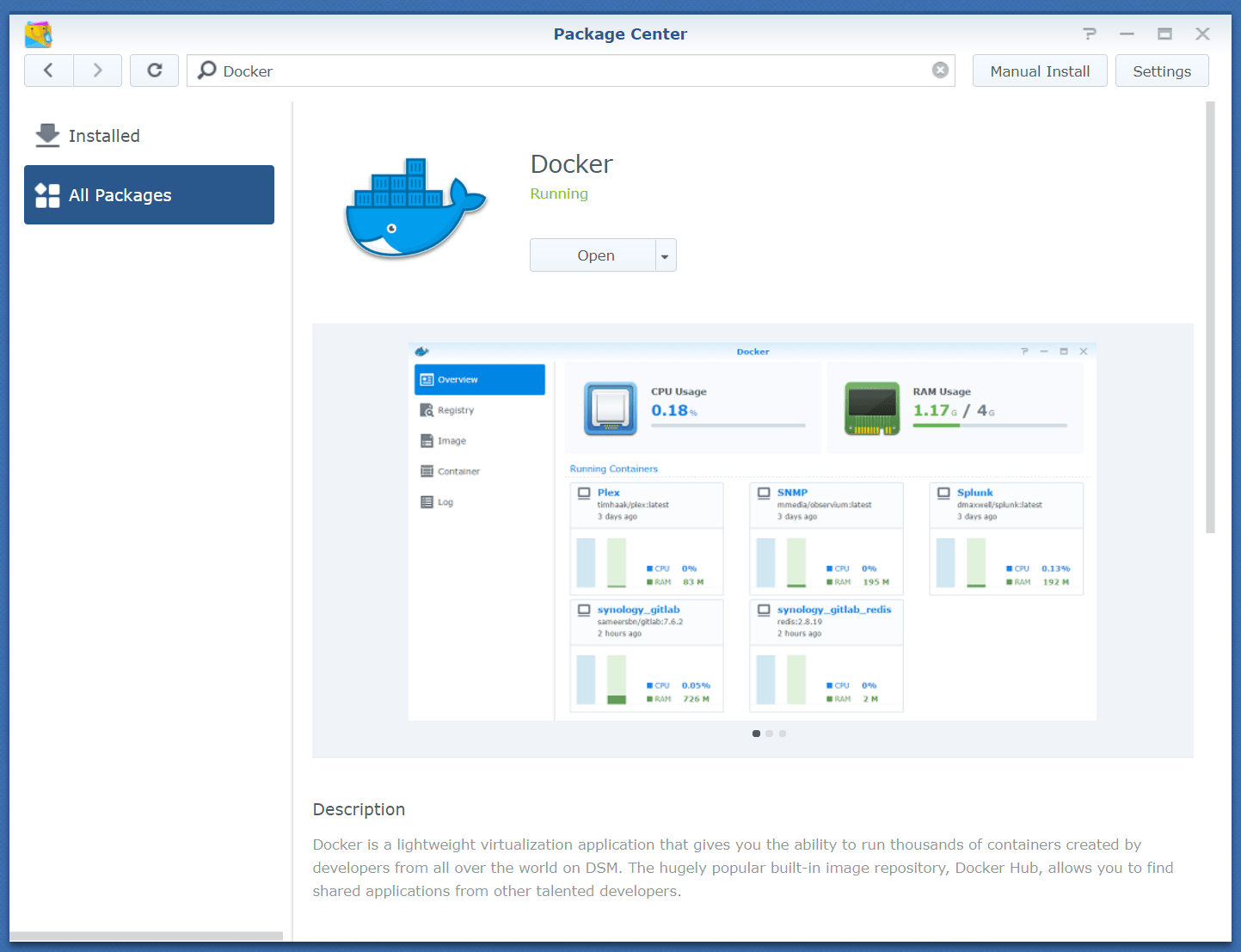
If the package is installed, open Docker.
Load MongoDB from registry
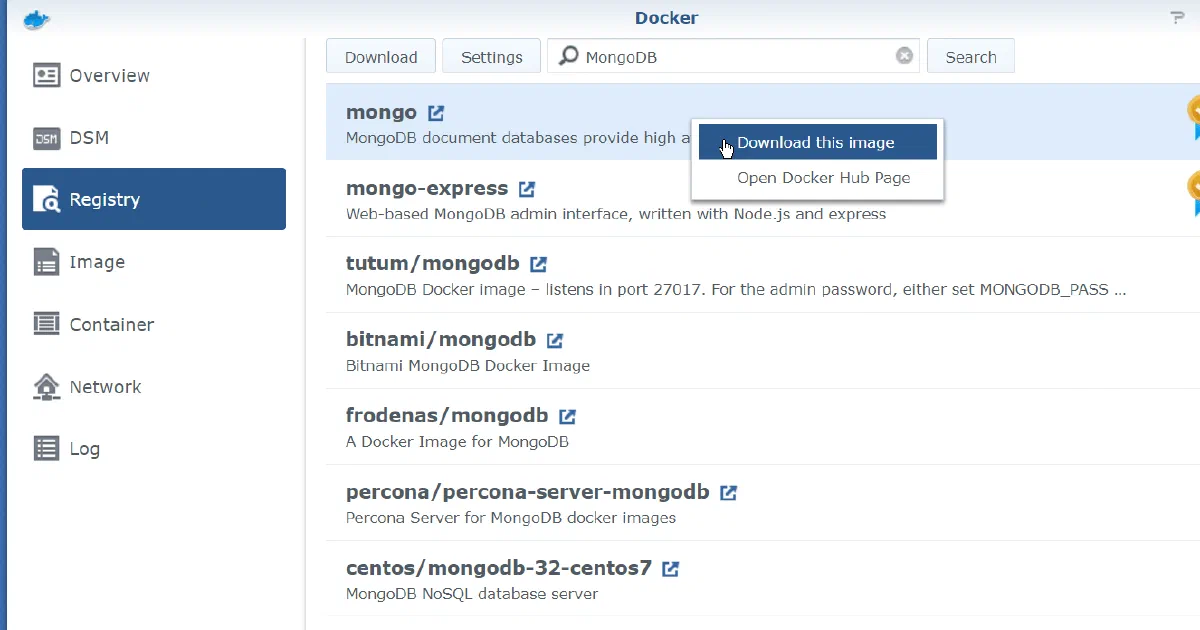
Search for MongoDB in the official Docker Registry and right-click on mongodb to download the image.
I have used the version 4 (mongo:4)
Launch MongoDB
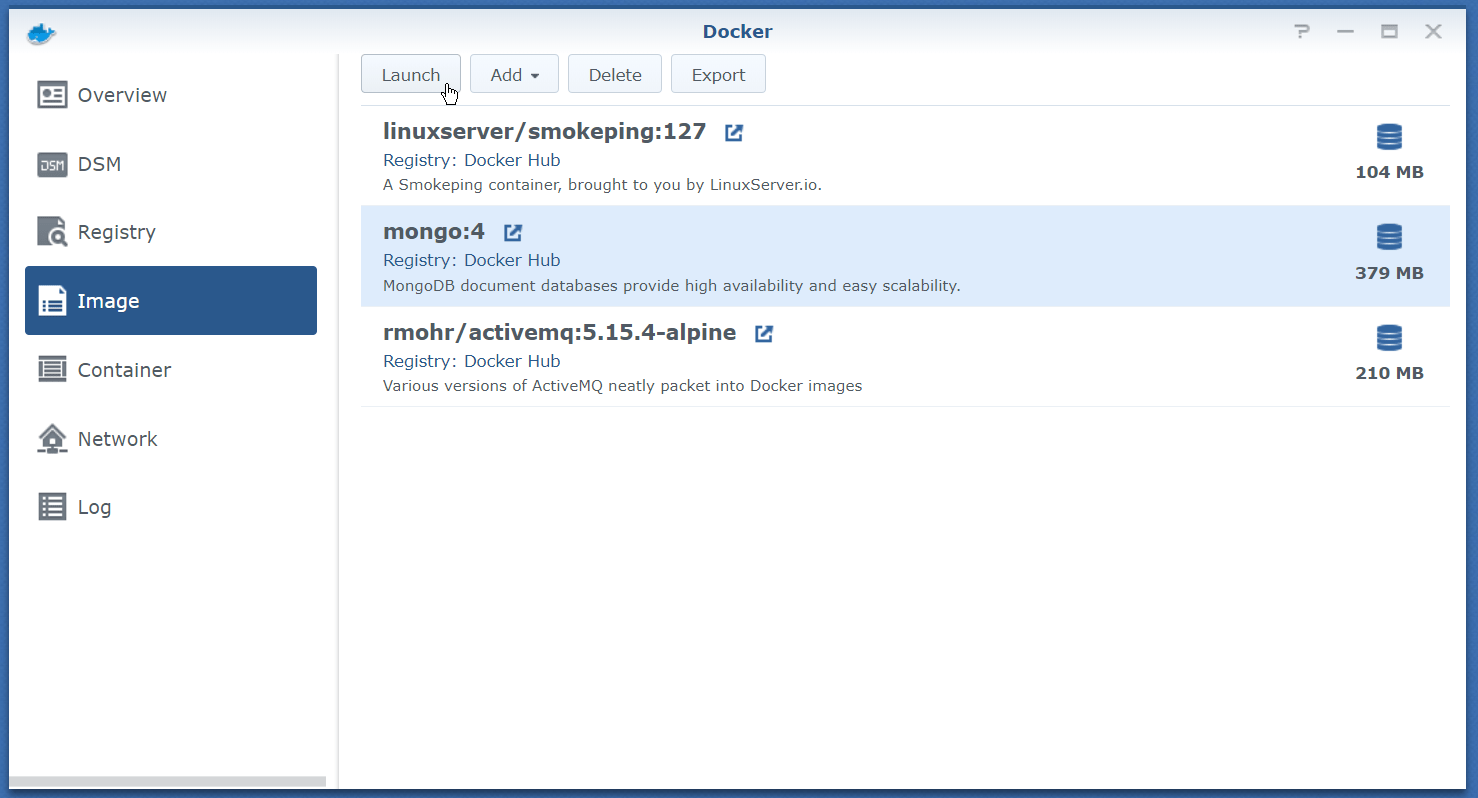
Click on the downloaded MongoDB image and press the Launch button.
A window opens where you can configure your MongoDB container.
Setup Name and limit Resources
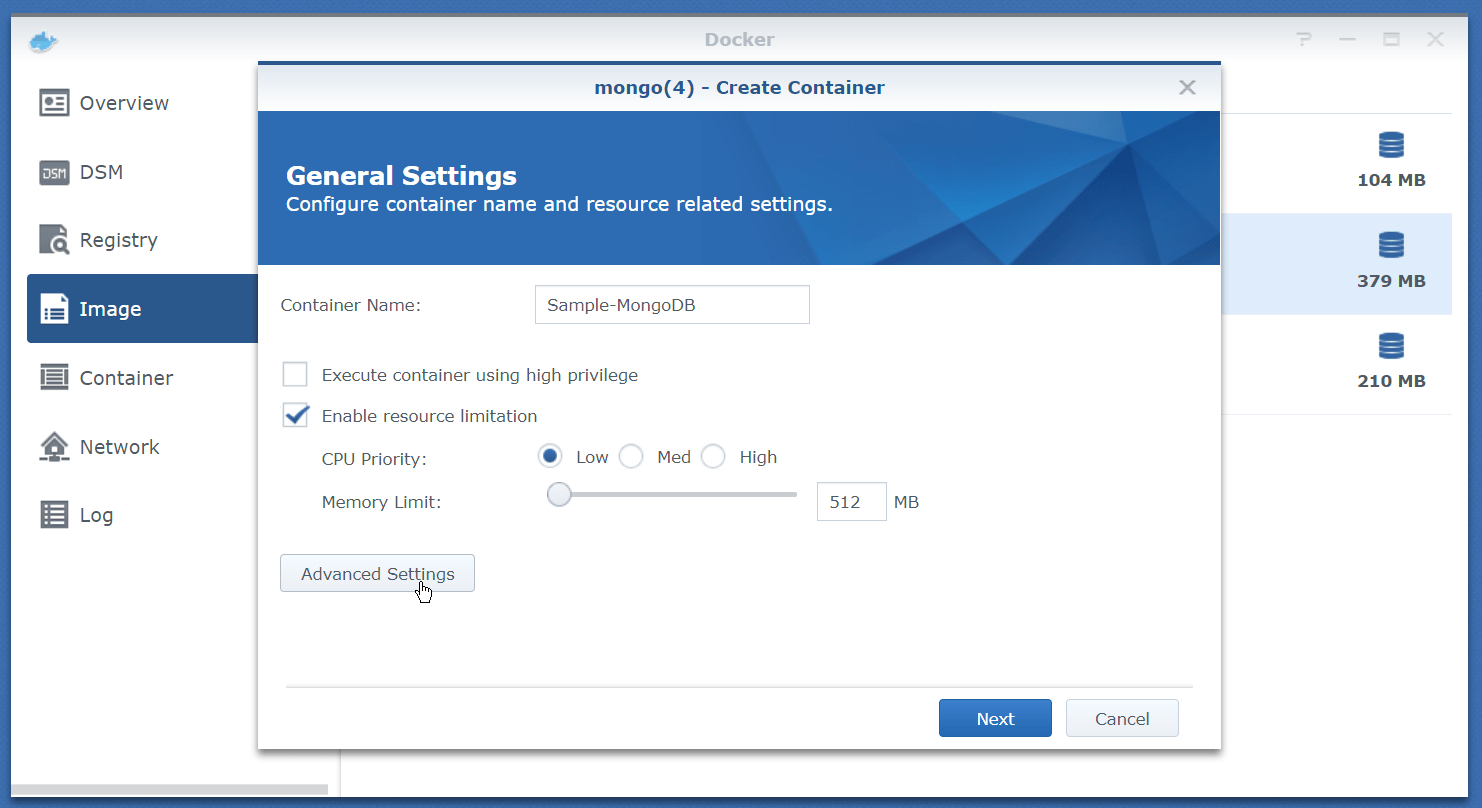
If you want to limit the resource to a container, you can set the priority and max RAM-usage. 1 GB of RAM for MongoDB means it can hold aprx. 100.000 entries in RAM.
Setup Advanced Settings
On the same window you have a button Advanced Settings
Enable AutoStart - if you want
AutoStart means the Docker Container will automatically start, if your System starts. This makes sense.
Volume
Map a folder for your data. Otherwise your data will be inside your container! This means you will not be able to upgrade your container to a new MongoDB version and you will lose all data if you delete your container.
My mapping is:
- Local folder
MONGO_INITDB_ROOT_USERNAMEto mount path/data/db- not read-only
Port Settings
By default MongoDB listens to 27017. You can use any unused port, the default port or you let Synology automatically set a port.
Links
You do not need any settings here.
Environment
You need two required environment variables. I have not touched the default environment variables.
- The var
MONGO_INITDB_ROOT_USERNAMErepresents your admin username likeYourAdminNameHere - The var
MONGO_INITDB_ROOT_PASSWORDrepresents your admin password likeYourPassword777!Here
Ready. You can now start and run MongoDB.
Admin Tool
By default MongoDB has no administration tool on board.
You can use the free tool Robomongo {target=_blank rel=noopener} to connect to your MongoDB Instance. Use you synology adress and your MongoDB port to connect with your credentials you’ve set in your Docker environment variables.
Related articles

- 10 min read
Backing Up GitHub Repositories on Synology NAS with gickup
GitHub is an operational platform, not a backup strategy. For a long time, that distinction often felt theoretical because GitHub is - …
- 5 min read
Home Assistant via Docker auf einer Synology NAS installieren
You can find the English version of this guide here: Install Home Assistant on Synology NAS with Docker Home Assistant ist für viele der …
- 4 min read
Install Home Assistant on Synology NAS with Docker
Die deutsche Version findest du hier: Home Assistant via Docker auf einer Synology NAS installieren Home Assistant is the “hub” …

BEN ABT
Ben is Chief Engineering Officer and Principal Software Engineer at Medialesson.de, with a strong focus on .NET and Microsoft Azure. In his professional role, he designs and builds highly scalable platforms for hybrid and cloud-based scenarios. He also advises companies and C-levels on migrating to the sovereign cloud.
He runs myCSharp.de, the largest and most active German-speaking C# community forum, actively contributes to both his own and external open-source projects and regularly shares his knowledge through his blog, at community events, conferences and as a writer for technical magazines.
Let's Work Together
Looking for an experienced Platform Architect or Engineer for your next project? Whether it's cloud migration, platform modernization or building new solutions from scratch - I'm here to help you succeed.