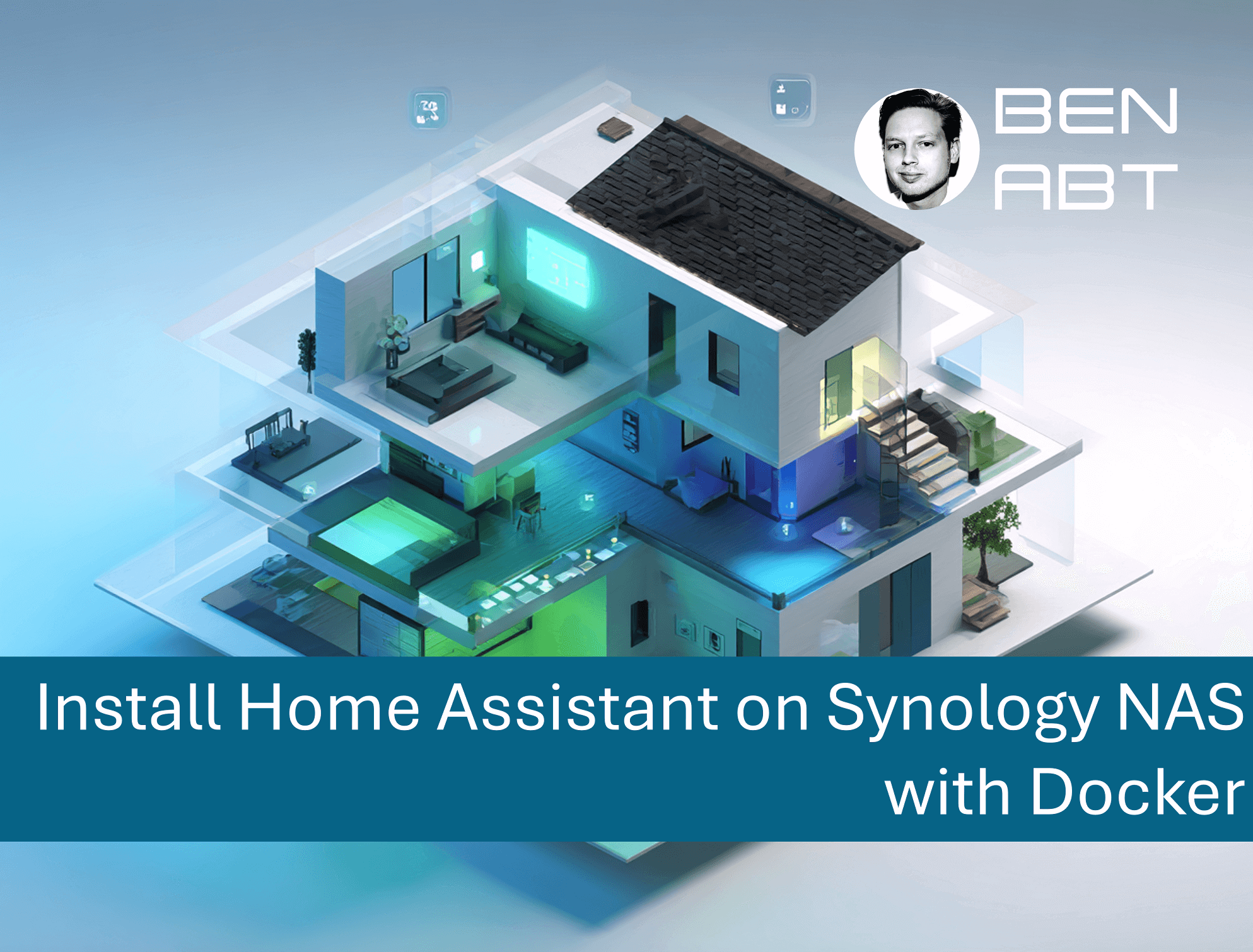
Die deutsche Version findest du hier: Home Assistant via Docker auf einer Synology NAS installieren
Home Assistant is the “hub” for many smart homes: local-first, extensible and backed by a huge ecosystem. If you already run a Synology NAS, it’s often a great platform to host Home Assistant in a container-no extra Raspberry Pi required.
This guide installs Home Assistant (latest stable) via Docker on Synology Container Manager with a setup that:
- keeps configuration persistent
- updates cleanly
- avoids common LAN discovery issues
TL;DR
- Open DSM Container Manager → Project → deploy from
docker-compose.yml - Run Home Assistant with
network_mode: host - Mount a persistent
./configfolder - Open
http://<NAS-IP>:8123
Prerequisites
- Synology DSM 7.2+ (or a DSM version that includes “Container Manager”), e.g. Synology DS220+, DS720+, DS920+, etc.
- Optional RAM upgrade to at least 2GB (recommended for Home Assistant)
- Container Manager installed
- A static NAS IP is recommended (or a DHCP reservation)
Why host networking?
Home Assistant relies heavily on discovery protocols (mDNS/Bonjour, SSDP/UPnP, etc.). On NAS setups, the most reliable approach is often:
network_mode: host
This attaches the container directly to the NAS network stack and prevents a lot of multicast/broadcast headaches.
Step 1: Create a persistent config folder
Create a folder on your NAS to persist Home Assistant data.
Recommended project folder layout on Synology:
/volume1/docker/homeassistant/docker-compose.ymlconfig/
Important: the folder must actually exist, otherwise the container won’t start.
If you see an error like:
Bind mount failed: '/volume1/docker/homeassistant/config' does not exist
… then the folder path is wrong or hasn’t been created (also double-check whether your NAS uses volume2 or a different volume name).
Step 2: Create docker-compose.yml
In your project folder (e.g. /volume1/docker/homeassistant/), create docker-compose.yml:
 1services:
 2  homeassistant:
 3    container_name: homeassistant
 4    image: ghcr.io/home-assistant/home-assistant:stable
 5    network_mode: host
 6    restart: unless-stopped
 7    environment:
 8      - TZ=Europe/Berlin
 9    volumes:
10      - /volume1/docker/homeassistant/config:/config
11      - /etc/localtime:/etc/localtime:ro
Notes
:stabletracks the latest stable Home Assistant release.- With
network_mode: host, you must not map ports like8123:8123.
Step 3: Deploy in Synology Container Manager
- Open Container Manager
- Go to Project
- Create → select the folder containing
docker-compose.yml - Name it e.g.
homeassistant - Deploy
Step 4: Open Home Assistant
Open:
http://<NAS-IP>:8123
The first startup can take a few minutes.
Updates (simple & safe)
Using :stable means you update by pulling the latest image.
Update via Synology UI
- Container Manager → Images → update the Home Assistant image
- Re-deploy the project / restart the container (depends on DSM UI version)
Update via CLI (optional)
1docker compose pull
2
3docker compose up -d
Backup / Restore
Everything important lives in the mounted folder:
./config(relative to your project directory)
Back up that folder and you have your full Home Assistant setup.
Common pitfalls
1) Web UI not reachable
- Check if the container is running.
- Check DSM firewall rules and VLAN/network segmentation.
- With host networking, access is always
http://<NAS-IP>:8123.
2) Discovery doesn’t work
- Ensure
network_mode: hostis enabled. - Check whether your router/VLAN blocks multicast.
3) USB Zigbee/Z-Wave stick not detected
This depends on the device and DSM. Typically you need device mappings (e.g. /dev/ttyUSB0) and permissions.
If you tell me your stick model (e.g. Sonoff ZBDongle-E, ConBee II, SkyConnect), I can provide a Compose variant.
HTTPS (optional)
Home Assistant works perfectly fine over HTTP in your LAN. If you want clean HTTPS without browser warnings (and often a nicer setup for VPN access), a good approach for private networks is:
- create your own Root CA (trusted by your devices)
- issue a server certificate for a local domain like
homeassistant.abt - use Synology Reverse Proxy for HTTPS termination in front of Home Assistant
Full background guides:
- Create a Root CA: /blog/2025/10/13/create-custom-root-certificate-authority/
- Issue HTTPS certs from your Root CA: /blog/2025/10/15/create-self-signed-https-certificates-with-custom-root-ca/
Step 1: Point a local domain to your NAS
Create a DNS A record in your DNS (router, Pi-hole, AdGuard Home, UniFi, etc.):
1homeassistant.abt → 192.168.1.50
Step 2: Create certificates
- Create your Root CA once and install it as trusted on your client devices.
- Issue a server certificate for
homeassistant.abt.
Recommended SAN entries:
DNS.1 = homeassistant.abt- Optional:
IP.1 = 192.168.1.50
Note: If you use Apple devices (Safari/iOS), keep the certificate validity to 397 days (or less) for compatibility.
Step 3: Import the certificate into DSM
DSM:
- Control Panel → Security → Certificate
- Add → Import certificate
- Import the certificate and private key (and chain/CA bundle if applicable)
Step 4: Configure Synology Reverse Proxy
DSM:
- Control Panel → Login Portal → Advanced → Reverse Proxy
- Create
Example:
- Source:
HTTPS, hosthomeassistant.abt, port443 - Destination:
HTTP, host127.0.0.1, port8123
Enable WebSocket support.
Step 5: Tell Home Assistant you’re behind a proxy
Edit configuration.yaml inside your mounted config folder and add:
1http:
2  use_x_forwarded_for: true
3  trusted_proxies:
4    - 127.0.0.1
5    - ::1
Restart Home Assistant afterwards.
Access
https://homeassistant.abt
If your Root CA is installed correctly on the client, you won’t see certificate warnings.
Related articles
Dec 27, 2025 · 5 min read
Home Assistant via Docker auf einer Synology NAS installieren
You can find the English version of this guide here: Install Home Assistant on Synology NAS with Docker Home Assistant ist für viele der …
Oct 22, 2025 · 18 min read
Vaultwarden (Bitwarden) mit Docker auf Synology NAS selbst hosten
You can find the English version of this guide here: Self-Hosting Vaultwarden (Bitwarden) on Synology NAS with Docker …

Feb 26, 2026 · 6 min read
Run Azure Cosmos DB locally with .NET Aspire and make emulator endpoints visible in the dashboard
When building cloud-native .NET applications, two goals often matter at the same time: a fast local development loop and a clean path to …
Author

BEN ABT
Ben is a Principal Software Engineer at Medialesson.de, with a strong focus on .NET and Microsoft Azure. In his professional role, he designs and builds highly scalable platforms for hybrid and cloud-based scenarios. He also advises companies and C-levels on migrating to the sovereign cloud.
He runs myCSharp.de, the largest and most active German-speaking C# community forum, actively contributes to both his own and external open-source projects and regularly shares his knowledge through his blog, at community events, conferences and as a writer for technical magazines.
Let's Work Together
Looking for an experienced Platform Architect or Engineer for your next project? Whether it's cloud migration, platform modernization or building new solutions from scratch - I'm here to help you succeed.
Comments